Dell Inspiron Mini 10 Memory Upgrade the Easy Way
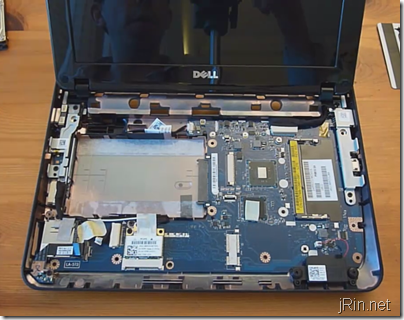
| Just like the Dell Mini 1012, upgrading the memory is not a simple task on the 1018. One needs to remove the keyboard, hard drive, and entire top half (palm rest) in order to get access to the memory (and other modules such as bluetooth, wifi, wwan, etc). It’s not particularly difficult if you have the right mini screw drivers and plastic card (to pry stuff off), it’s just a bit time consuming. Continue on to learn how! |
Tools required:
All you need are some mini screw drivers and a plastic scribe (I used a credit card) for prying parts of the case apart.
| For those interested, here’s the set of screw drivers I used in the video (they’re quite cheap!): | Or, for a few bucks more, you can get a set of Boxer mini screw drivers with a bunch more precision bits (including torx): |
Note: While following either the video or picture guide, it’s a good idea to also follow the Dell Service Manual (it’s what I followed to make these guides!)
How-to video:
As with the 1012, here is a video guide to dismantling the 1018. For just upgrading the memory, it’s similar to the 1012 except there is no memory access door under the keyboard; you have to go one step further and remove the palm rest as well.
and of course, re-assembling it:
Picture guide:
And for those of you who want a picture guide, here you go (unfortunately, I forgot to take actual pictures when taking the video, so all the images below are video screen grabs, so the quality isn’t perfect):
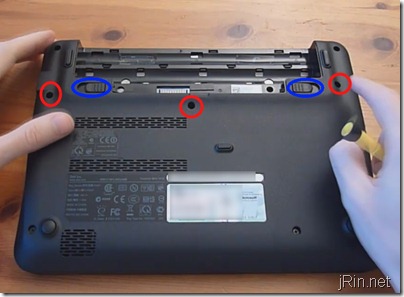
1) Press out the two tabs holding the battery in, remove it, and unscrew the three screws holding the keyboard in:
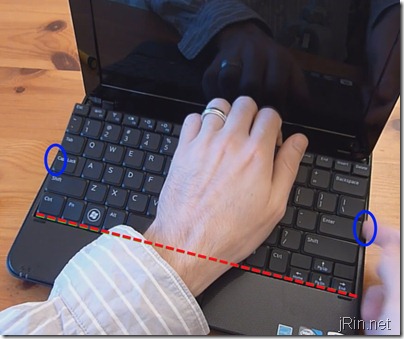
2) Flip the laptop on it’s side and stick a screw driver in one of the keyboard holes to push the keyboard out a bit. This will allow you to pry out the keyboard:
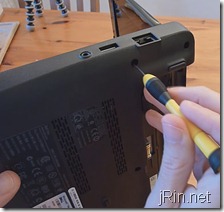
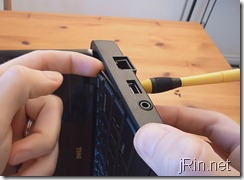
With your finger under the keyboard, use the rest of your hand to grab the keyboard, rotate it towards the palm rest as though there was a hinge at the bottom while breaking free of the two clips on the left and right. Pull it toward the screen about half an inch, and flip it upside down on the palm rest (note that it is attached to the motherboard via a ribbon cable, so don’t pull it too far away from the laptop yet).
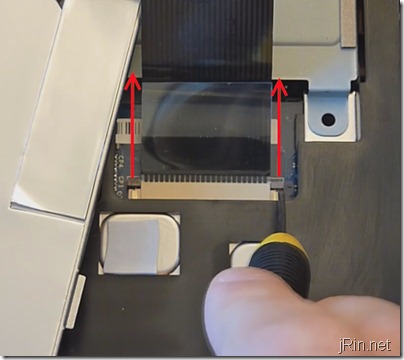
Now you just need to push out the two grey tabs securing the keyboard cable to the motherboard and then remove the keyboard:
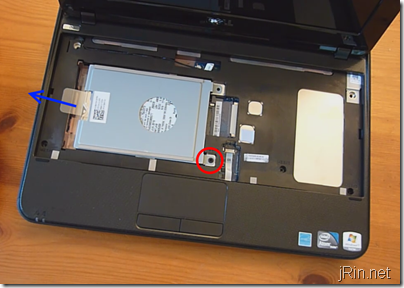
3) Remove the single screw holding the hard drive in, pull it to the left using the pull tab , and lift it out. (If you want to replace the hard drive, remove the 2 screws on either side and replace it).
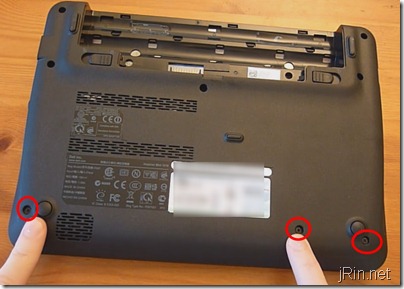
4) Prepare the palm rest for removal. Start by flipping the laptop over and remove the 3 bottom screws holding it down:
Then, flip it back over, open the screen, and remove the touchpad cable by flipping up the latch securing it to the mother board and pull the cable out:
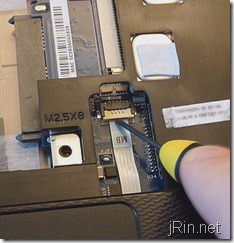
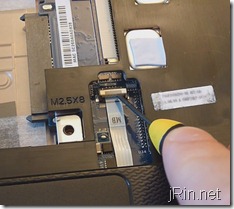
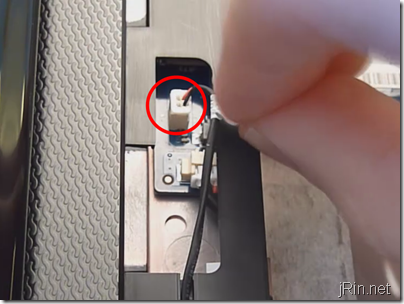
Next, unplug the power button cable by simply pulling it out. If you can, grab the actual plastic piece of the connector , but if not, you should be fine just pulling on the wires or the sticker tab:
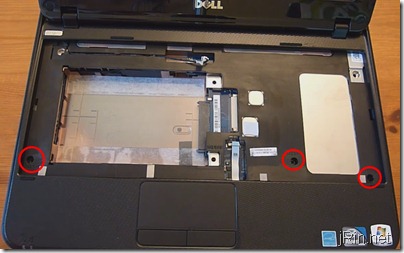
Last thing to do is to remove the top 3 final screws holding down the palm rest:
5) Pry off the palm rest. Start out by using your finger to pry it apart starting on the left, inner part (I’ve found it to be the easiest place to start). Once you get one of the clips loose here, you can use a credit card to break free of the clips all around the left, bottom, and right side:
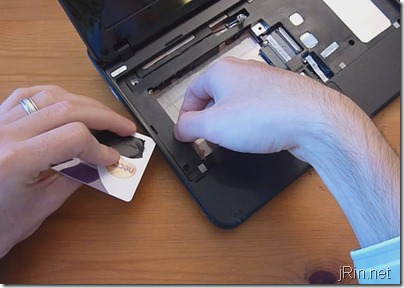
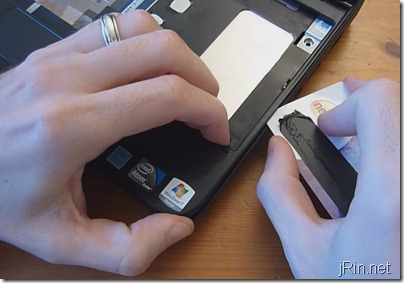
With the left, bottom, and right loose, you basically just lift it up from the bottom until it breaks free from the screen hinge area. It may seem like it’s going to snap in half, but as long as you removed all the screws and such, you should be fine!
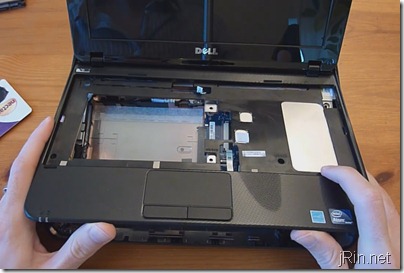
6) Upgrade the memory. You now have access to the memory slot â€" if you want to upgrade it (max 2gb ddr3 stick), simple push out the two tabs and the stick will pop up â€" pull it out and put in your new stick and you’re good to go! (note, this takes DDR3 memory and not DDR2 like all the previous Dell Mini 10v’s)
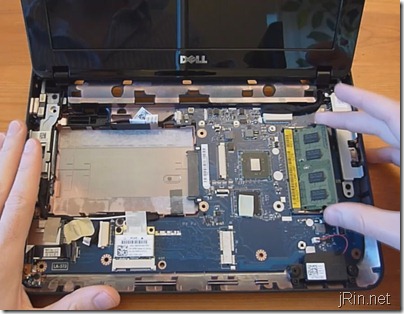
If you are looking for some DDR3 memory, here are a few cheap options from Amazon.com that would work:
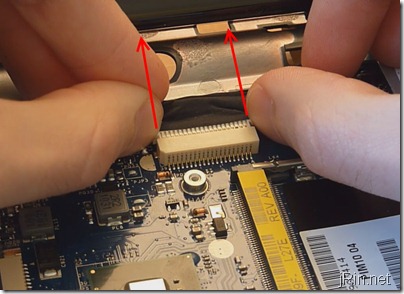
7) Disconnect the display and Wi-Fi cables in order to remove the screen. Start by using a screw driver or your finger nails and push the edges of the display cable towards the display until the cable is unplugged:
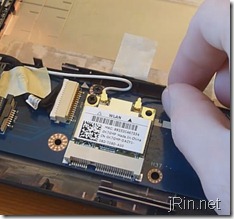
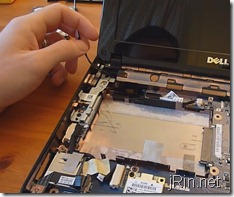
Next, remove the white (left) and black (right) wifi cables by simply pulling them off, and then un-route the cable all the way to the display hinge:
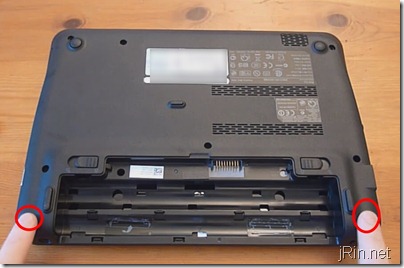
8) Remove the middle cover and the back display screw. Start out by flipping the laptop over and remove the two screws securing the middle cover:
Then, using a plastic scribe (or, if you don’t have something similar, use a screw driver â€" but it may rip up the chassis a bit) and pry up the middle cover just enough to slide your credit card (or similar) in to release all the clips and pull off the cover.
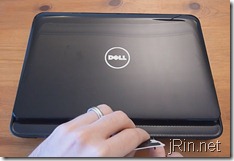
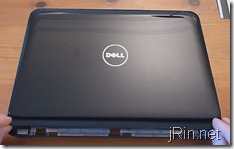
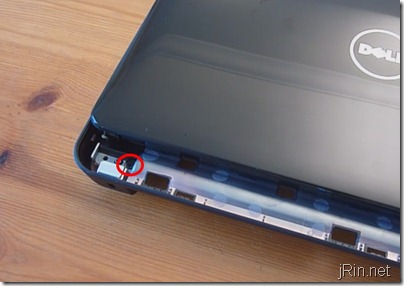
With the cover removed, remove the single rear display screw:
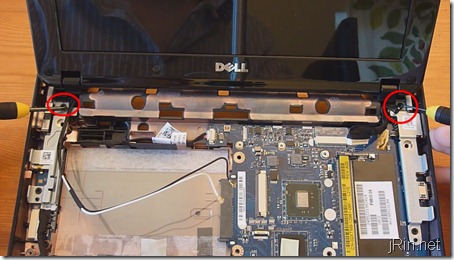
9) Remove the display assembly. There are two final screws holding the display to the chassis. While removing these screws, be sure to hold onto the screen so it doesn’t pop out in the process of removing said screws:
10) Remove the display bezel. Pry off the two sticky , rubber screw covers and then remove the screws underneath:
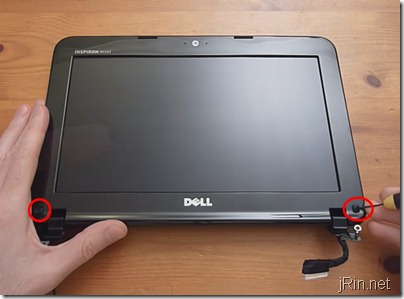
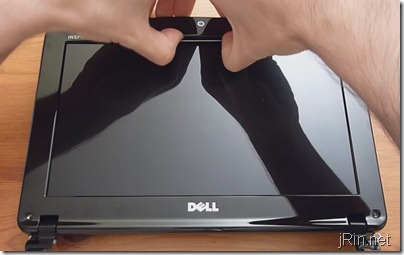
Now, start to pry off the top part of the bezel by prying from the inside while being careful not to put too much pressure on the screen itself. There isn’t much to explain about how to do this other than basically try to rip it off, haha â€" with any luck, you won’t break any of the clips and everything will be fine:
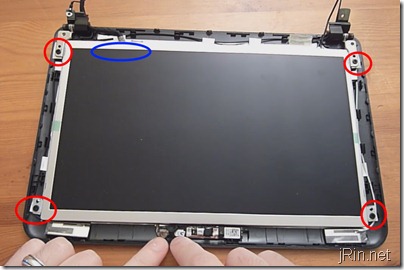
From here, remove the four screws securing the screen to the bottom bezel. With them removed, start to pull the the display away â€" there may be some sticky tape on the underside , so be aware when removing:
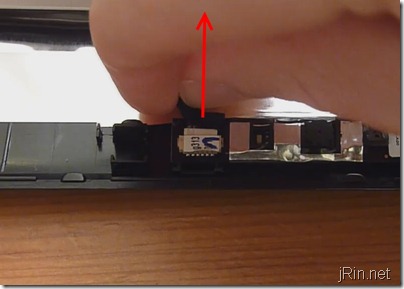
Before you completely pull the screen away from the bottom bezel, you’ll need to pull free the webcam cable. Just simply grab it from the wire and gently pull it free:
12) If you want to keep going, you can remove the 2 screws (4 total) on either side of the screen for the brackets, and simply pull off the ribbon cable on the back, in order to free the actual display from everything.
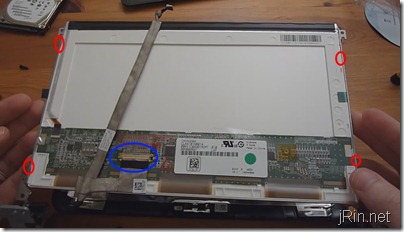
To put it back together now, simply follow this guide in reverse!
That’s it! Let us know how your dismantling, upgrading, and/or reassembling goes in the comments!
Source: https://www.jrin.net/2010_10_30/how-to-upgrade-and-dismantle-the-dell-mini-1018
0 Response to "Dell Inspiron Mini 10 Memory Upgrade the Easy Way"
Post a Comment